Windows Logon Screen is something many people doesn't like but just go with it as many don't know how to change it, for this there are two methods, I prefer the second one as it is more easy and but first one is a bit lengthy process, there is no harm in using any of the method but firstly you need to create a logonui.exe.
here we go....
first, get a program like regedit (Google it)
look for logonui.exe in your windows/system32 folder.
MAKE A COPY OF THIS FILE AND PUT IT IN YOUR ROOT FOLDER FOR EASY ACCESS!!!!
open it with regedit or another registry key editor, and look around in it. if you want to spend hours painstakingly figuring out how to edit it on your own, be my guest. I haven't bothered even doing that yet... just go to http://www.themexp.org/ and you can find tons of custom themes.
After you have downloaded your new logon screen, put that somewhere safe, and name it logonui.exe. DON'T try and copy it onto your real logonui while still in the windows envornment!
Method I:
- You can re-start in safemode and try this from the command line, but i have had amazing luck with BartPE. http://www.nu2.nu/pebuilder if you can't find a new best friend who has a PE disk, you can make your own with the pebuilder on that website. if you don't have it, and you plan on doing a lot of hacks, i would totally recommend this, you'll use it. A LOT...
- Assuming you now have something like bartPE, just boot that up (hit F12 or whatever key at the boot screen to bring up your menu. select to boot from cd, and you're good to go.
- Open the file explorer and copy your new logonui.exe.
- Go to windows/system32, and delete the original (make absolutley sure you have your backup) and look for any backups that windows made. (i found only one on my computer: 'logonui.exe.mainframe')
- Put your edited file in place (make sure you named it right) and restart.
the extra file you need to delete is 'logonui.exe.manifest'
There you go.
Method II:
get up to the point where you have created or selected your preferred logonui.exe. just rename YOUR logon screen whatever you want (we'll use personallogon.exe) and put it in the same C:\windows\system32 folder.
open up registry editor (go to start, run, type 'regedit')
navigate to this key:
HKEY_LOCAL_MACHINE\SOFTWARE\Microsoft\Windows NT\CurrentVersion\Winlogon
select 'Shell'
you will notice that the value for this key is C:/Windows/System32/logonui.exe
change this value to (C:/Windows/System32/personallogon.exe)
bam! far easier than before. log off and you'll see if it worked or not.
for more information, see here
Look for more windows hack tutorials in the future!
Hack the Windows Logon Screen
Software of the Week : Storm Codec - to play all kinds of video and audio formats
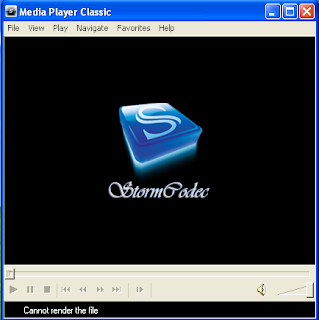
We have started software of the week to provide one good software every week t o our users and this will be a free ware to the most of the time but not compulsorily.Today's software is Storm codec; we all faced some problem playing the video files in our computer at some time or the other and we then wished that there could be some universal player which will take care of all the video formats and which will not have any divx errors, and other errors. Storm codec solves this problem exactly. It has all the features that a normal computer user expects.
Description: Storm codec is an add-on to the windows media player and it enhances the service provided by the windows media player. It supports all most all the formats viz most popular media files, streams and VCD/DVD, it can play RealMedia, QuickTime, MPEG-2, MPEG-4 (DivX, XviD, 3ivx, MP4, FFGS, H264...), AC3/DTS/LPCM, VP3/VP6, HDTV, Theora, TTL2, APE, FLAC, AAC, Subtitles, OGG/OGM, Matroska, MPC, Voxware, FLC, 3GP/AMR... without any other Media Player (But latest Windows Media Player it recommended)
Key features of Storm codec:
- RealPlayer 10.5 decodings cores & ActiveX 6.0.12.1698
- RealMedia Splitter 1.0.1.1
- QuickTime 7.13 decodings cores
- & ActiveX (contains AMR/3GP & H264 in the MOV support)
- Flash Player 9 r16
- Kopei's XviD Codec 1.10 (Build 20.05123 million)
- ffdshow MPEG-4 Codec 20.060526 million (contains realaac, liba52, libdts, libtremor and so on)
- On2 VP7 Codec 7.0.10.0
- On2 VP6 Codec 6.4.2.0
- Ligos Indeo Codec 3.2 - 5.2
- GV Codec 1.2
- CyberLink Video/SP Filter (ATI) 6.0.0.1625
- NVidia PureVideo Decoder 1.02-223
- RatDVD Decoder 0.78.1444
- OGG Splitter 1.0.0.0
- AAC Parser 1.1
- CoreFLAC Audio Decoder & Source DirectShow Filter 0.4.0.46
- DS Monkey's Audio Filter 1.0 + APE Audio Lib 3.99u4
- SHN to WAV Filter 20.051008 million
- TTA DirectShow Splitter 1.0.0.203
- RadLight MPC DirectShow Filter 1.0.0.3
- OGG Vorbis MSACM Codec
- Voxware Metasound & Metavoice ACM Codec
- Haali's Splitter 20.060707 million
- PMP Splitter 1.0.0.8
- VSFilter (Direct VobSub) 2.37
- Media Player Classic 6.4.9.0
- G.Spot 2.60 B00

- P II / Celeron / K6-2 400MHz
- 128M RAM
- 80M Free HD Space
- A Display Card (AGP or PCIE) with at least 4M Video RAM
- AC97 or HD-Audio compatible soundcard
- DirectX 8 or higher (DirectX 9 is highly recommend)
- Screen at least at 640×480×16Bit
- It eats your ram and also uses your CPU, I suggest to use this codec only if you have ram more than 256 MB.
- The time taken by the mplayer (installed as a part of storm codec) supports all formats but takes a it more time to load than the usual players.
- There won't be history of the files played by the mplayer.
- No skins are available, so you have to bare the default blue skin( infact it is a good skin)
- There are a few files that are not played by storm codec also.
The official site is in Chinese language you can see it by translating it into your regional language
Extras : Alternatives to the storm codec are klite codec, all in one codecs.
How to hide the system tray icons ?
Windows displays icons for active and urgent notifications, and hides inactive  ones. You can change the behavior for items present in the system tray. Sometimes, it annoys when there are too many system tray icons. They are also not needed to be shown always. Cleaning the system tray also provides more space on the task bar which can accommodate more number of windows.
Actually this feature is provided by much software by themselves but some don't provide this (e.g.: anti-viruses). They can also be forced to hide by this trick.
1. Right click on green colored start menu.
2. Select properties.
3. Navigate to taskbar (by default it is only active)
Then you can see a window similar to the one shown in the picture.
4. For every item, there are three options namely always hide, always show and hide when inactive.
5. Select the item for which you want to change the settings.
6. Click ok.
You are done, you can use this to keep an item to appear or hide permanently.
This is a very easy process to hide the system tray icons, through which you can get rid of annoying and useless icons. I assume that you know what the system tray icons are!
Fury as XP automatically installs Desktop Search
Microsoft has also been forced to give Vista users a choice over their desktop search software, after Windows Live search was set as the default in the OS. 
IT departments have found that the update has been installed company-wide, which could have large implications for performance. The application uses an index to speed up search results, which many claim is slowing down their PCs. Those who have tried to uninstall the program have not only been forced to restart, but have found that Windows again attempts to install the program unless specifically told not to.
Last month, Microsoft was accused of installing "stealth updates", even on machines configured not to automatically update, prompting Microsoft to be more transparent about the update process in future.
"This is helpful and important feedback, and we are now looking at the best way to clarify WU's [Windows Update's] behaviour to customers so that they can more clearly understand how WU works," said Nate Clinton, product manager for Windows Update, after the incident.
How to organizing My Computer components systematically?
My computer is the common gateway for opening any folder or a drive. It is a common location from where searching and browsing of a file are possible. Due to its ordered manner, users open My Computer as soon as they loin into Windows. It irritates when my computer appears in disorder fashion. Due to various reasons, sometimes it appears so. This can be easily rectified by following method.
- Open My Computer.
- In the standard buttons toolbar, select “tiles” option from the view button.
- Right click on the empty space of My Computer.
- Select arrange icons by “Type” or “Name”
- Again, right click on the empty space of My Computer.
- Select “show in groups” option from arrange icons.

The reason for distortion of icons may be due to virus or some malware. Improper shutting down or a sudden cut in the power may also result in scrambling of icons. The same thing can be applied for a drive to orderly place the files and folders. Play with other options also for ordering the icons based on different choices available. We hope you enjoyed this tutorial, for more such tutorials subscribe us or bookmark us.